A question I get asked from time to time is how I run multiple instances of the Minecraft Bedrock server. It is quite easy once you know what tools to use.
I am running this from Ubuntu server 20.04.2 LTS. If you want to do the same but with Windows, you should have a look at ForceBindIP. I will continue this for linux users. You will need the following packages to be installed.
Firejail is a SUID sandbox program that reduces the risk of security breaches by restricting the running environment of untrusted applications using Linux namespaces, seccomp-bpf and Linux capabilities. It allows a process and all its descendants to have their own private view of the globally shared kernel resources, such as the network stack, process table, mount table.
Screen is a full-screen window manager that multiplexes a physical terminal between several processes (typically interactive
shells). Each virtual terminal provides the functions of a DEC VT100 terminal and, in addition, several control functions from the
ISO 6429 (ECMA 48, ANSI X3.64) and ISO 2022 standards (e.g. insert/delete line and support for multiple character sets). There is a
scrollback history buffer for each virtual terminal and a copy-and-paste mechanism that allows moving text regions between windows.
$ sudo apt install screen firejailOnce you have installed these tools you will have to edit your interfaces file with a text editor;
$ nano /etc/network/interfacesdepending on your system aliases could be eth0 instead of enp1s0
auto enp1s0:0
iface enp1s0:0 inet static
address 10.0.0.50
netmask 255.255.255.0

auto enp1s0:1
iface enp1s0:1 inet static
address 10.0.0.51
netmask 255.255.255.0
You can add as many aliases as you want but be sure the ip addresses are available on your local network and not used by your DHCP server. Now let’s make the above aliases available.
$ sudo ifconfig enp1s0:0 10.0.0.50 up
$ sudo ifconfig enp1s0:1 10.0.0.51 up
Now let’s download a fresh install of the bedrock server;
$ wget https://minecraft.azureedge.net/bin-linux/bedrock-server-1.16.201.03.zip
$ mkdir ~/mcpe_1
$ unzip bedrock-server-1.16.201.03.zip -d ~/mcpe_1
$ cd ~/mcpe_1
When finished you probably want to edit your ‘server.properties’
$ nano server.propertiesNow let’s run “screen” and start our first Minecraft server
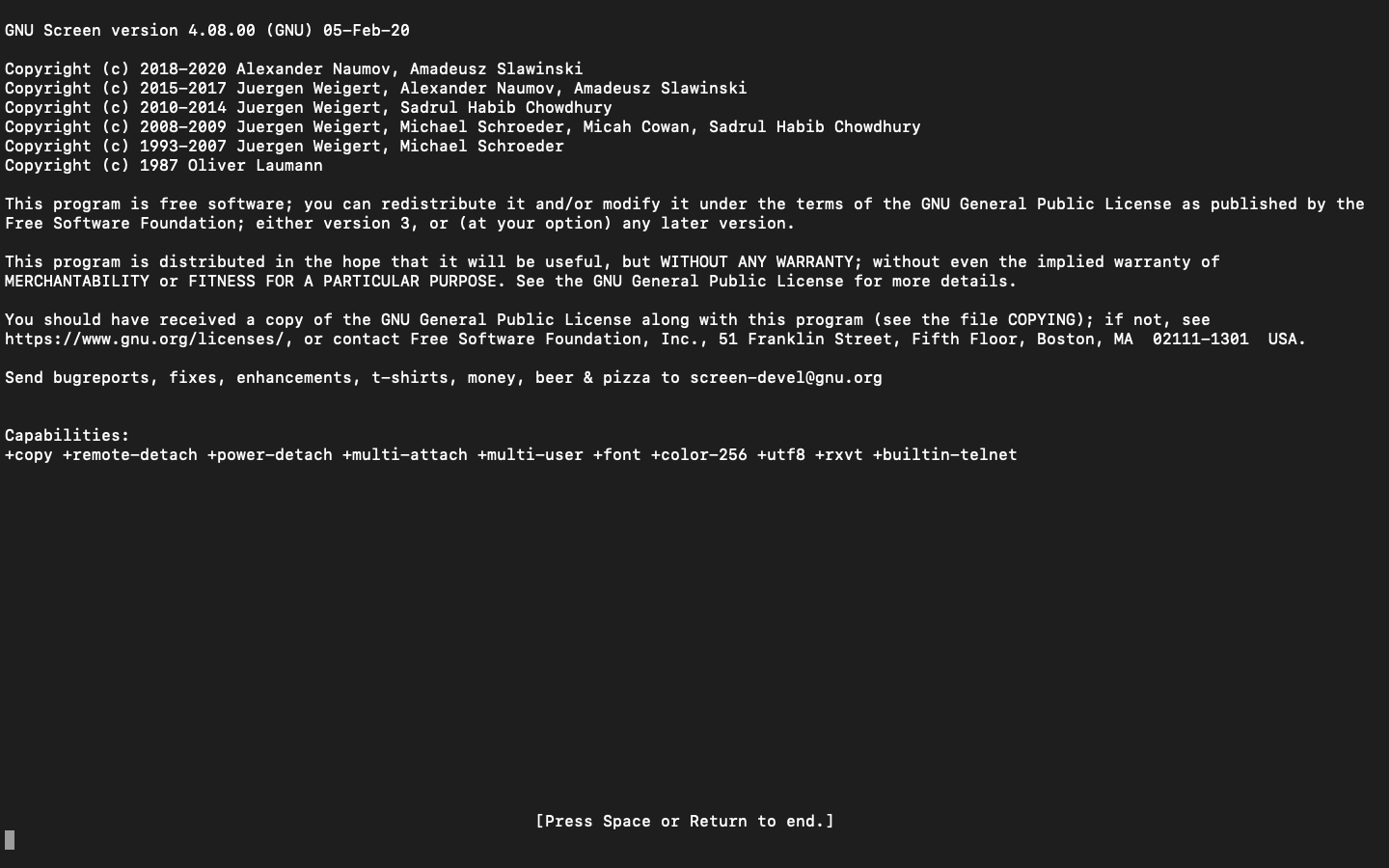
$ screenYou will be greeted with the following message. Press Enter.
After this you will be given a prompt like you are used to.
$ cd ~/mcpe_1
$ sudo firejail --dns=208.67.222.222 --noprofile --net=enp1s0 --ip=10.0.0.50 ./bedrock_server
This is it. Your server is now running and should be available on your home network. To exit this instance of screen press CRTL-A then CTRL-D.
If you want to know what screen windows are available you can check with;
$ screen -r
There are several suitable screens on:
24869.pts-0.ubuntu (02/07/2021 07:20:28 AM) (Detached)
24706.pts-0.ubuntu (02/07/2021 07:10:58 AM) (Detached)
5989.pts-0.ubuntu (01/31/2021 04:53:01 PM) (Detached)
5769.pts-0.ubuntu (01/31/2021 04:21:08 PM) (Detached)
Type "screen [-d] -r [pid.]tty.host" to resume one of them.
To continue a screen session just run;
screen -r 24706If your screen shows up as (attached) use ‘-d’
screen -d -r 24706If you are ready you can do the above again for running other instances of the Minecraft server. Unzip the Minecraft server to a new directory, start a new screen session and run;
$ cd ~/mcpe_2
$ sudo firejail --dns=208.67.222.222 --noprofile --net=enp1s0 --ip=10.0.0.51 ./bedrock_server
That’s all there is to it! Anyway 🍻 and happy gaming.