Used Nintendo Switch systems often come with a parental-control PIN still enabled. There are homebrew utilities that reveal this PIN, but compatibility varies between firmware versions and older builds don’t always behave as expected. This post documents how I recompiled Reset Parental Controls, why the prebuilt binary didn’t work for me, and how I extended the project with a background image, touch input, and an always-visible PIN.
These notes are intended for anyone maintaining their own Switch homebrew builds or experimenting with devkitA64.
docker run --rm \
  -v "$(pwd)":/project \
  -w /project \
  devkitpro/devkita64 \
  bash -lc "source /etc/profile.d/devkit-env.sh && make clean && make"
After a successful build, the resulting filereset_parental_controls.nro
appears in the project root. Copy it to your SD card, launch it via the Homebrew Menu, and it runs as expected.
When the precompiled build doesn’t behave
The tool I downloaded should have displayed the PIN when pressing ZL, but nothing appeared. Instead of testing more binaries, I decided to compile the project myself. A fresh build solved the issue immediately. That gave me an excuse to explore the codebase and add a few small features:
- a custom background
- basic touch-screen interaction
- permanently visible PIN text
The project is minimal, so extending it is straightforward once the build environment is running.
Building the project with Docker
For compilation I used the same setup I previously relied on for MegaDrive/Genesis work: a Docker container running devkitA64. This avoids installing the toolchain directly on the host system and keeps environments reproducible.
Build command:
docker run --rm \
  -v "$(pwd)":/project \
  -w /project \
  devkitpro/devkita64 \
  bash -lc "source /etc/profile.d/devkit-env.sh && make clean && make"
After compilation, the resulting file: reset_parental_controls.nro is placed in the project root. Copy it to the SD card and launch it through the Homebrew Menu.
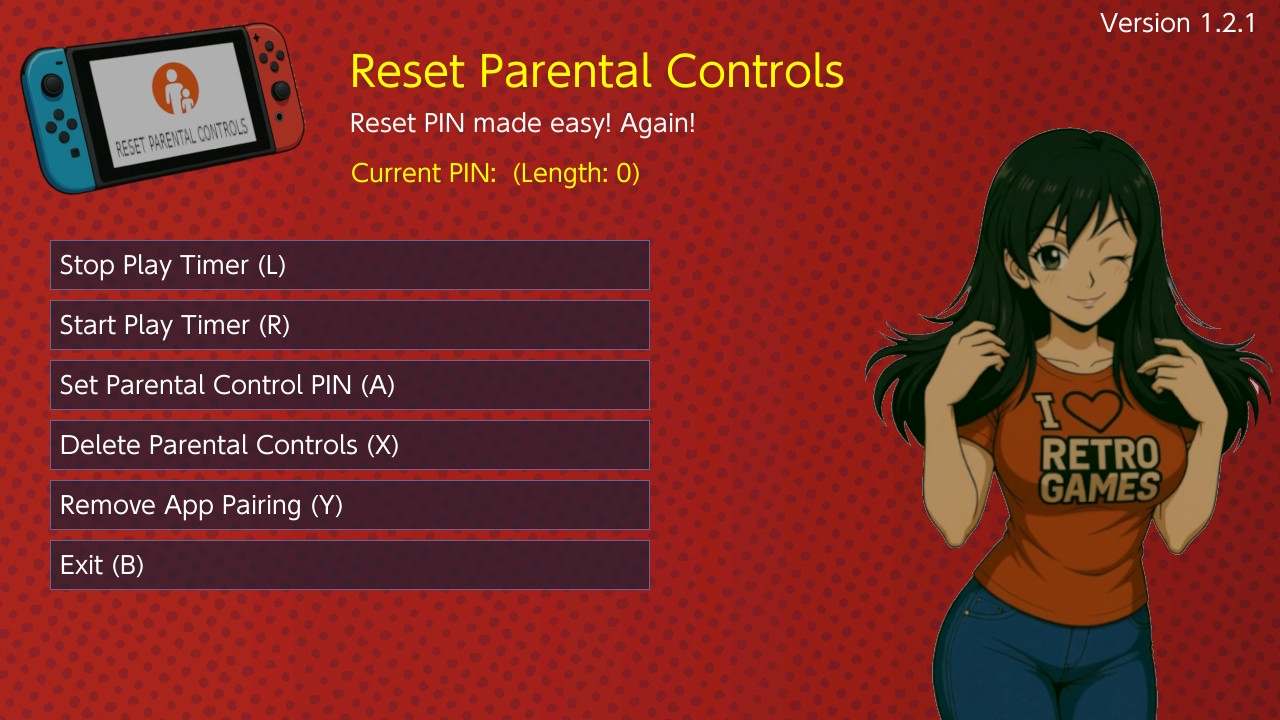
Embedding a background image
To include a background, I chose to embed it directly as a .h file. For a simple project like this, embedding avoids additional file-loading code and guarantees the asset is always available.
The process:
- Convert the JPEG image to raw binary using a Python script
- Convert the binary into a C header using
xxd
#!/usr/bin/env python3
"""
JPG/PNG to Binary Converter for Nintendo Switch
Converts image to RGB565 raw binary data for xxd embedding
"""

from PIL import Image
import sys
import os

def rgb888_to_rgb565(r, g, b):
    """Convert 24-bit RGB to 16-bit RGB565"""
    r5 = (r >> 3) & 0x1F
    g6 = (g >> 2) & 0x3F
    b5 = (b >> 3) & 0x1F
    return (r5 << 11) | (g6 << 5) | b5

def convert_image_to_binary(input_path, output_path):
    """Convert image to binary RGB565 file"""

    print(f"📷 Loading image: {input_path}")

    try:
        img = Image.open(input_path)
    except Exception as e:
        print(f"Error loading image: {e}")
        return False

    # Convert to RGB if needed
    if img.mode != 'RGB':
        print(f"   Converting from {img.mode} to RGB...")
        img = img.convert('RGB')

    width, height = img.size
    print(f"   Resolution: {width}x{height}")

    # Check if 1280x720
    if width != 1280 or height != 720:
        print(f"Warning: Image is not 1280x720, resizing...")
        img = img.resize((1280, 720), Image.Resampling.LANCZOS)
        width, height = 1280, 720

    # Convert to RGB565
    print("🔄 Converting to RGB565 format...")
    pixels = list(img.getdata())

    # Write binary file
    print(f"💾 Writing binary to: {output_path}")

    with open(output_path, 'wb') as f:
        for i, (r, g, b) in enumerate(pixels):
            rgb565 = rgb888_to_rgb565(r, g, b)
            # Write as little-endian (Switch is little-endian)
            f.write(bytes([rgb565 & 0xFF, (rgb565 >> 8) & 0xFF]))

            if (i + 1) % 10000 == 0:
                print(f"   Progress: {(i + 1) / len(pixels) * 100:.1f}%", end='\r')

    print(f"   Progress: 100.0%")

    file_size = os.path.getsize(output_path)
    print(f"Done! Generated {output_path} ({file_size/1024:.1f} KB)")

    return True, width, height

def generate_build_instructions(bin_filename, array_name="background_image"):
    """Generate instructions for using xxd"""

    header_name = array_name + ".h"

    instructions = f"""
================================================================
           BUILD INSTRUCTIONS FOR YOUR PROJECT
================================================================

STEP 1: Generate C header with xxd
----------------------------------------------------------------
Run this command in your terminal:

    xxd -i {bin_filename} > {header_name}

This creates a C header file with the embedded binary data.

STEP 2: Fix the variable name (important!)
----------------------------------------------------------------
xxd creates ugly variable names with underscores. Open {header_name}
and replace:

    unsigned char {bin_filename.replace('.', '_')}[]

with:

    const unsigned char {array_name}_data[]

Also replace:

    unsigned int {bin_filename.replace('.', '_')}_len

with:

    const unsigned int {array_name}_len

STEP 3: Add defines to the header
----------------------------------------------------------------
Add these lines at the top of {header_name} (after the comments):

    #ifndef {array_name.upper()}_H
    #define {array_name.upper()}_H

    #define {array_name.upper()}_WIDTH 1280
    #define {array_name.upper()}_HEIGHT 720

And at the bottom add:

    #endif // {array_name.upper()}_H

STEP 4: Include in your project
----------------------------------------------------------------
In your main.c:

    #include "{header_name}"

RESULT:
----------------------------------------------------------------
You'll have access to:
    - const unsigned char {array_name}_data[]     // The pixel data
    - const unsigned int {array_name}_len         // Size in bytes
    - {array_name.upper()}_WIDTH                   // 1280
    - {array_name.upper()}_HEIGHT                  // 720

TIP: Add {bin_filename} to your .gitignore if using git
"""

    return instructions

def main():
    if len(sys.argv) < 2:
        print("Usage: python jpg_to_binary.py <input.jpg> [output.bin] [array_name]")
        print("\nExample:")
        print("  python jpg_to_binary.py background.jpg")
        print("  python jpg_to_binary.py background.jpg bg.bin")
        print("  python jpg_to_binary.py background.jpg bg.bin my_background")
        sys.exit(1)

    input_path = sys.argv[1]

    if not os.path.exists(input_path):
        print(f"Error: File not found: {input_path}")
        sys.exit(1)

    # Default output name
    output_path = sys.argv[2] if len(sys.argv) > 2 else "background.bin"
    array_name = sys.argv[3] if len(sys.argv) > 3 else "background_image"

    print("=" * 60)
    print("🎮 Nintendo Switch - Image to Binary Converter")
    print("=" * 60)

    success, width, height = convert_image_to_binary(input_path, output_path)

    if success:
        print(generate_build_instructions(output_path, array_name))

        # Create a quick reference file
        ref_file = output_path.replace('.bin', '_build.txt')
        with open(ref_file, 'w', encoding='utf-8') as f:
            f.write(generate_build_instructions(output_path, array_name))
        print(f"Instructions saved to: {ref_file}")
    else:
        sys.exit(1)

if __name__ == "__main__":
    main()
Commands used:
python .\convert2.py bg.jpg bg.bin my_background
xxd -i bg.bin > bg.h
The resulting header can be included directly in the source and drawn during rendering.
Adding touch support and always-visible PIN
The built-in HID functions in libnx make basic touch input easy to implement. Keeping the PIN visible simply required moving the print routine outside the event handler so it updates every frame. Neither modification is complex, but both make the tool more convenient to use on a handheld device.
Source code
My updated fork, including all changes described above, is available here: https://github.com/vandoeselaar/Reset-Parental-Controls-NX