I’ve been replaying Full Throttle, one of the classic ’90s point-and-click adventures. The game runs well through ScummVM on Nintendo Switch, but launching it through the Homebrew Menu each time becomes tedious:
Album → Homebrew Menu → ScummVM → select game.
I wanted a quicker, cleaner workflow — ideally a forwarder that appears directly on the Switch home screen and launches Full Throttle immediately.
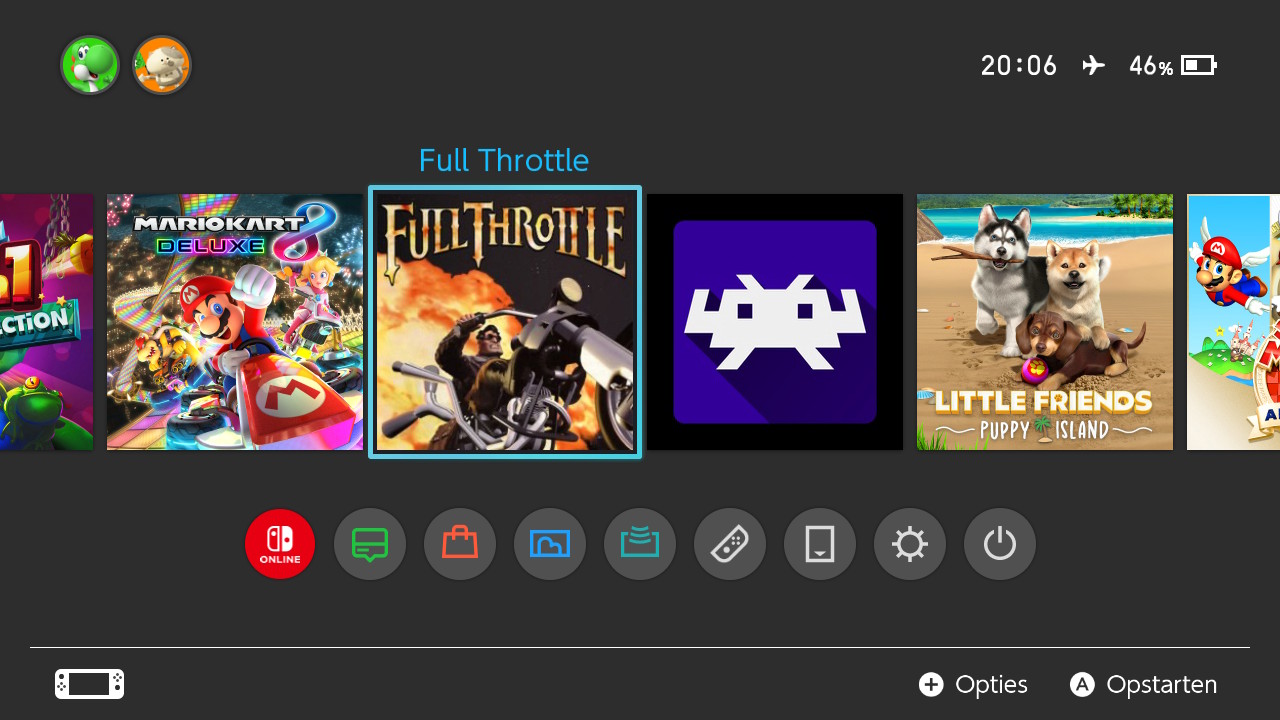
This post describes the simple custom NRO I built to auto-start ScummVM with the correct arguments, plus the steps to generate an NSP forwarder that places the launcher on the main Switch menu.
So I really like my retro games and started to replay full throttle. It’s a great point and click adventure from the 90’s.
But I find it annoying to first start the hombres launcher via the album icon and then starting scummvm en loading the game. I want a forwarder for my game from the main switch menu.
How it works
The goal is straightforward:
- Boot a tiny NRO that immediately launches ScummVM.
- Pass the correct parameters so ScummVM loads Full Throttle directly.
- Package an NSP forwarder that points to your NRO.
Your NRO does only one thing:
call envSetNextLoad() to load the real ScummVM binary with the right arguments.
This avoids modifying ScummVM itself and keeps your setup clean.
Source code for the launcher
#include <stdio.h>
#include <string.h>
#include <switch.h>
#include <unistd.h>

int main(int argc, char* argv[])
{
    consoleInit(NULL);

    const char* scummvm_dir = "sdmc:/switch/scummvm/";
    const char* nro_path = "sdmc:/switch/scummvm/scummvm.nro";

    // cwd ScummVM directory
    chdir(scummvm_dir);

    const char* args[] = {
        "scummvm",
        "--fullscreen",
        "--auto-detect",
        "--gui-theme=scummmodern",
        "ft",  // Full Throttle game ID
        NULL
    };

    char arg_string[512] = {0};
    for (int i = 1; args[i] != NULL; i++) {
        if (i > 1) strcat(arg_string, " ");
        strcat(arg_string, args[i]);
    }

    consoleUpdate(NULL);

    envSetNextLoad(nro_path, arg_string);

    consoleExit(NULL);
    return 0;
}
This code autostarts ScummVM in fullscreen mode, applies the modern theme, auto-detects the engine, and launches the ft target (Full Throttle).
Example project structure
A minimal layout for this setup looks like:
project-root/
│
├── source/
│   └── main.c
│
├── Makefile
├── bg.h        (optional: if you add a background or theme)
└── build/      (created by make)
On the SD card, ScummVM should be located here:
sdmc:/switch/scummvm/scummvm.nro
sdmc:/switch/scummvm/...
The launcher expects this path unless you update the constants at the top of main.c.
Building with Docker
You can compile the launcher using the same devkitA64 Docker workflow as other Switch homebrew projects.
Run this inside your project directory:
docker run --rm \
  -v "$(pwd)":/project \
  -w /project \
  devkitpro/devkita64 \
  bash -lc "source /etc/profile.d/devkit-env.sh && make clean && make"
When the build finishes, the NRO will be placed at:
./launcher.nro
(or whatever you named it in the Makefile).
Copy the resulting file to your SD card under:
sdmc:/switch/fullthrottle-forwarder/
Creating the home screen forwarder
With the NRO ready, you can generate a proper Switch home-menu icon using the online NSP forwarder tool:
Steps:
- Upload your compiled NRO.
- Provide an icon (JPEG/PNG).
- Download the generated NSP.
- Install the NSP with your usual homebrew installer.
This places your custom Full Throttle launcher directly on the Nintendo Switch home screen.
Result
Launching Full Throttle now becomes a single tap from the home menu — no Homebrew Menu, no navigation inside ScummVM.